
 Casino
  Live Casino
 Play Mobile Version Pokies on iOS & Android on SkyCrown App
SkyCrown Casino does not have a native app on the App Store or Google Play — mobile access for NZ players runs entirely through the browser. All 7,000+ games are accessible through Safari on iOS 13+ and Chrome on Android 8+ — no download, no installation required. NZ players can start playing at Sky Crown Casino Online from any modern smartphone or tablet in under a minute.
| Platform | Access Method | Store Availability | Install Required | Full Feature Access |
| iOS (Safari 13+) | Browser PWA | Not available | Add to Home Screen (optional) | Yes |
| Android (Chrome 8+) | Browser PWA | Not available | Add to Home Screen (optional) | Yes |
| Desktop (Chrome/Edge) | Browser | N/A | No | Yes |
Does SkyCrown Casino Have a Mobile App?
No — SkyCrown Casino does not have a native app; instead, it operates as a Progressive Web Application (PWA) that runs entirely in your mobile browser. The App Store and Google Play apply strict restrictions to offshore gambling applications, which is why most international online casinos — including SkyCrown — use a browser-based PWA model instead. For NZ players, this makes no practical difference: the full casino loads in Safari or Chrome within seconds, with no installation step between you and the games.
The PWA model delivers five structural advantages over a native app:
- No Storage Requirements — SkyCrown App runs entirely in your browser, consuming zero device storage
- Automatic Updates — every visit loads the latest version without manual update downloads
- Universal Compatibility — works on any smartphone or tablet with a modern browser, regardless of manufacturer
- Instant Access — no waiting for downloads or installation processes before play
- Bypass App Store Restrictions — gambling apps face restrictions on iOS and Android stores; the PWA model avoids these limitations entirely
| Feature | PWA | Native App |
| Download required | No | Yes |
| App Store / Google Play | Not available | Required |
| Storage used | Minimal (icon only) | 50–200 MB |
| Updates | Automatic | Manual |
| Full game library | Yes | Casino-dependent |
| Available for NZ | Yes | N/A |
What You Can Do on SkyCrown Casino App
SkyCrown Casino mobile browser version delivers full desktop functionality — no features are removed or restricted on mobile.
- 7,000+ games optimised for touchscreen play — pokies, table games, live dealer, and game shows
- Full live casino access with HD video streaming via Evolution Gaming
- Complete banking — deposits and withdrawals including POLi, Visa, Mastercard, and major cryptocurrencies
- Bonus code entry and promotional offer claiming directly in the mobile browser
- Account management including KYC document uploads
- 24/7 live chat support accessible from any screen without leaving your current page
- Portrait and landscape orientation support across all game types
- Quick deposit shortcuts for frequent transactions
- Biometric login support — Face ID, Touch ID, fingerprint
- Push notifications for promotions
How to Access Skycrown App for iPhone (iOS)
iPhone and iPad users access SkyCrown Casino App through Safari — the only iOS browser that supports standalone home screen shortcuts with full PWA functionality.
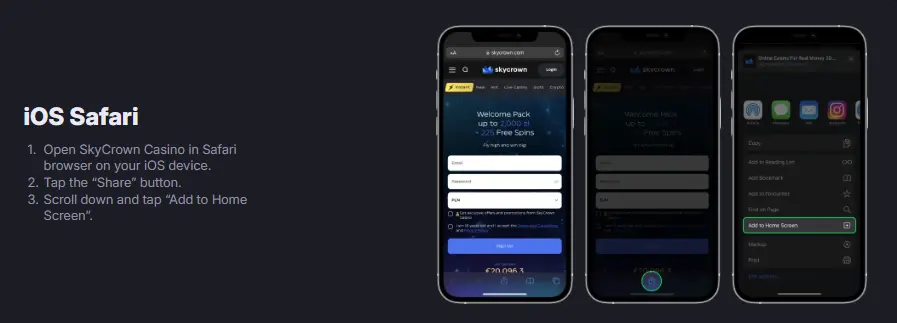
Add SkyCrown to Your iPhone Home Screen — Step by Step
Adding Sky Crown App to your iPhone home screen creates an icon that launches the casino in fullscreen mode — identical to a native app experience.
- Open Safari on your iPhone or iPad — this feature only works in Safari, not Chrome or Firefox
- Type skycrown.nz in the address bar and wait for the page to fully load
- Tap the Share button (square with upward arrow) at the bottom of the screen
- Scroll down in the share sheet until you see “Add to Home Screen”
- Tap “Add to Home Screen”
- Edit the shortcut name if desired — keep it short for display purposes
- Tap “Add” in the top right corner
- Find the SkyCrown App icon on your home screen
- Tap to launch — Opens in fullscreen mode without Safari’s browser interface
The shortcut launches Sky Crown Casino App in a standalone window — Face ID and Touch ID work for biometric login if enabled in account settings.
iOS Requirement: Why Safari Only
The “Add to Home Screen” feature with standalone PWA functionality is available exclusively in Safari on iOS — Chrome, Firefox, and other iOS browsers can access skycrown.nz normally but cannot create home screen shortcuts that open in fullscreen mode without browser navigation elements. This is an Apple restriction that applies to all iOS browsers other than Safari, not a SkyCrown limitation. Minimum iOS version required: iOS 13+.
How to Access SkyCrown Casino App for Android
Android users access SkyCrown App for Android through Chrome or any modern browser — Chrome provides the best PWA experience, but Samsung Internet, Firefox, Opera, and Brave all support home screen shortcuts.
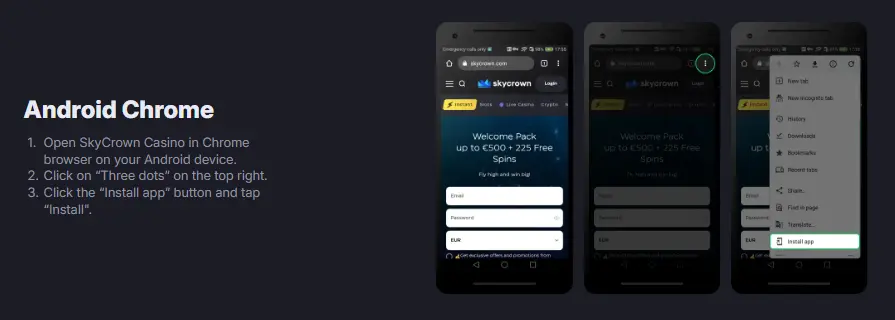
Add SkyCrown App for Android to Your Home Screen — Step by Step
Chrome on Android provides the smoothest skycrown casino app for android experience — the home screen shortcut opens the casino in a dedicated window without address bars or browser navigation.
- Open Chrome on your Android device
- Navigate to skycrown.nz — type the URL directly or use a search engine
- Wait for the page to fully load — you may see a prompt asking to add to home screen automatically
- If no prompt appears, tap the three-dot menu icon in the top right corner
- Select “Add to Home screen” from the dropdown menu
- Customise the name if desired
- Tap “Add” to confirm
- Find the new icon on your home screen or app drawer
- Tap to launch — SkyCrown App opens in a standalone window without Chrome’s browser chrome
The shortcut behaves like a native app — it appears in your app switcher and can be moved to folders.
Alternative Browsers on Android
Chrome delivers the best PWA experience on Android, but SkyCrown Casino app download is fully accessible through other modern browsers — each with their own “Add to Home Screen” path.
- Samsung Internet — Menu (☰) → Add page to → Home screen
- Firefox — Menu (⋮) → Install → Add to Home screen
- Opera — Menu → Home screen
- Brave — Menu (⋮) → Add to Home screen
Chrome is recommended for the most reliable PWA installation and the smoothest game performance on Android.
Home Screen App vs Mobile Browser
Both methods provide identical access to SkyCrown Casino Mobile full game library, bonuses, and banking — the difference is convenience and display mode, not functionality.
| Feature | Home Screen App | Mobile Browser |
| Launch Method | Tap icon on home screen | Open browser, navigate to site |
| Display Mode | Fullscreen (no browser UI) | Within browser with address bar |
| Storage Required | Minimal (icon only) | None |
| Updates | Automatic | Automatic |
| Game Selection | Full library (7,000+) | Full library (7,000+) |
| Banking | Full functionality | Full functionality |
| Bonuses | All available | All available |
| Push Notifications | Supported | Limited |
| Biometric Login | Supported | Browser-dependent |
For regular NZ players, adding SkyCrown App download to your home screen is recommended — the one-time setup takes under a minute and provides a cleaner fullscreen experience for every subsequent visit.
Sky Crown App Mobile Interface
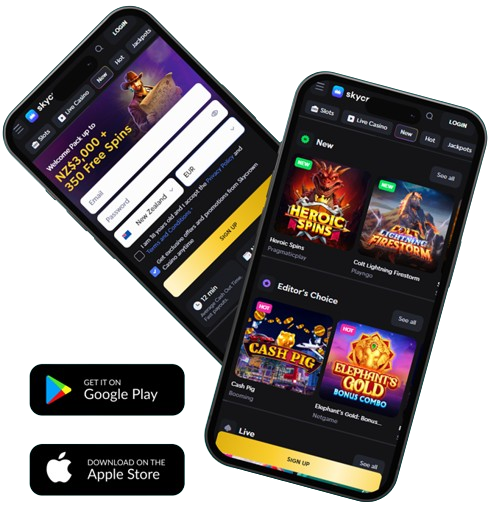
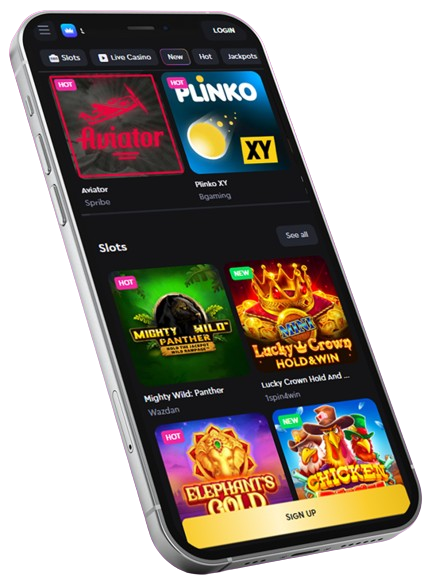
SkyCrown Casino mobile app interface adapts to smaller screens without removing features or changing navigation structure. Key interface elements: Hamburger Menu — three horizontal lines in the corner reveal the main navigation panel with all site sections; Search Bar — search by game title or provider name across 7,000+ titles, which is essential given the size of the library; Category Tabs — swipeable tabs for Pokies, Live Casino, Table Games, and other sections; Game Tiles — thumbnail grids with tap-to-play functionality; Account Button — quick access to balance, deposits, withdrawals, and settings; Support Icon — live chat accessible from any screen without leaving your current page.
Games display in responsive grids that adjust column counts based on screen width. Portrait orientation typically shows 2–3 games per row; landscape expands to 4–5. Within games, controls adapt for touch — spin buttons enlarge for easy tapping, bet adjustments use sliders or +/- buttons, and paytables open in scrollable overlays.
Device Compatibility at SkyCrown App Download
SkyCrown Casino’s browser-based platform supports an extremely wide range of devices — the table below shows tested device categories and expected performance for NZ players.
| Device Class | Pokies | Table Games | Live Casino HD | Crash & Instant Games | Min Connection |
| iPhone 12 / SE 3rd gen and newer | Full | Full | 1080p | Full | 4G / 25 Mbps |
| iPhone 8–11 | Full | Full | 720p | Full | 4G / 15 Mbps |
| iPhone 7 and older | Full | Full | 480p, occasional buffer | Full | 4G / 10 Mbps |
| Flagship Android (Samsung S22+, Pixel 7+) | Full | Full | 1080p | Full | 4G / 25 Mbps |
| Mid-range Android (2020–2023) | Full | Full | 720p | Full | 4G / 15 Mbps |
| Budget Android (under NZ$350) | Full | Some lag on Megaways | 480p | Full | 4G / 10 Mbps |
| iPad Air / Pro (any gen) | Full | Full | 1080p | Full | WiFi / 25 Mbps |
| Android Tablet 2020+ | Full | Full | 720p | Full | WiFi / 15 Mbps |
Which Devices Work Best for Live Casino Streaming?
Live casino streaming at SkyCrown App NZ requires a minimum stable connection of 10–15 Mbps for 720p and 25 Mbps for 1080p HD quality. iPhone 12 and newer, Samsung Galaxy S22 and newer, and iPad Air/Pro deliver the best live dealer experience. Older devices — iPhone 7, budget Android under NZ$350 — handle pokies without issues but may experience buffering during live dealer sessions, particularly in high-action game shows like Crazy Time. For the best live casino experience on mobile: use WiFi or strong 4G/5G, plug in the device for sessions longer than 90 minutes, and close background apps before launching live games.
Performance Tips for Mobile Play
Connection quality is the single biggest predictor of smooth gameplay at SkyCrown App — a budget Android on strong 4G typically outperforms a flagship phone on congested cafe WiFi.
- Use a stable WiFi connection or strong 4G/5G signal for live casino — test connection speed at fast.com before a long session
- Close background apps to free up RAM — especially relevant on devices with 3 GB RAM or less
- Keep device battery above 20% — mobile browsers throttle performance under low battery
- Disable battery saver mode during play — it reduces CPU performance and can cause game stuttering
- For live casino sessions over 60 minutes — plug in your device to prevent battery-related performance drops
Mobile Data Usage and Battery Drain
Playing SkyCrown Casino on mobile data adds two costs most NZ players underestimate: data consumption and battery drain. The difference between pokies and live casino is substantial — plan your session type before choosing cellular data over WiFi.
How Much Data Do Pokies Use on Mobile?
Pokies at SkyCrown NZ are highly data-efficient — a 90-minute session typically uses 5–15 MB of mobile data, equivalent to loading a few web pages. Battery drain is approximately 8–12% of a modern phone’s battery per 90-minute session. This makes pokies the mobile-data-friendly choice for NZ players on limited plans — a 1 GB data allowance typically covers roughly 60+ hours of pokie play.
How Much Data Does Live Casino Use on Mobile?
Live casino streaming is an entirely different data category — HD video streaming at SkyCrown typically pulls 300–500 MB per hour of play. A two-hour live blackjack or Crazy Time session can consume 600 MB–1 GB of mobile data. Battery drain is significantly higher: a live casino session can typically reduce a modern phone’s battery from 100% to under 30% in two hours. For live casino sessions on mobile data: use WiFi where possible, plug in your device, and monitor your remaining data allowance before starting.
Battery Optimisation for Longer Sessions
Background app permissions and push notification settings have a measurable impact on battery life during longer Sky Crown App sessions.
- Allow background refresh for SkyCrown’s home screen shortcut to keep your session warm and prevent auto-logout during short breaks — this typically costs approximately 1–2% additional battery per hour
- Disable background refresh for casual sessions — re-enable only for longer planned sessions
- Push notifications for promotions are battery-hungry — toggle them in account settings rather than at the OS level for finer control
- Enable Low Power Mode only between sessions, not during play — it throttles CPU performance and can cause game stuttering
- Landscape mode typically uses slightly more battery than portrait on most devices — use portrait for casual pokie sessions
Troubleshooting SkyCrown Casino on Mobile
Most SkyCrown Casino mobile app issues resolve in 2–3 steps — the table below covers the most common problems reported by NZ players.
| Issue | Platform | Cause | Fix |
| Slow performance or lag | iOS & Android | Background apps consuming RAM; battery saver mode active | Close background apps; disable battery saver; connect to WiFi |
| Games not loading | iOS & Android | Outdated browser; cached data conflict | Update Safari or Chrome to latest version; clear browser cache; try a different browser |
| Login issues | iOS & Android | Stored credentials conflict; cookie issue | Clear browser cookies; use password reset; ensure correct skycrown.nz URL |
| Display problems (zoom, layout broken) | iOS & Android | Zoom enabled; desktop mode active | Disable zoom in browser settings; disable “Request Desktop Site”; rotate device to reset layout |
| Payment failures | iOS & Android | Payment details incorrect; method temporarily unavailable | Verify payment details; try alternative method (POLi, crypto); contact live chat 24/7 |
| Add to Home Screen not working | iOS | Using Chrome or Firefox instead of Safari | Switch to Safari — this feature only works in Safari on iOS |
| Home screen shortcut not opening fullscreen | Android | Shortcut created via Firefox instead of Chrome | Delete shortcut; reinstall via Chrome for true standalone mode |
If an issue is not resolved by the steps above, contact live chat — available 24/7 and accessible from any page on skycrown.nz.